


Beginning October 15, 2026 OverDrive (the maker of Libby and Kanopy) will require PIN (Last Name) authentication in addition to a library card number when logging in.
Previously, you only needed your up-to-date library card number to authenticate your Libby (OverDrive) or Kanopy account and access materials. However, for security reasons you will now be asked for your PIN (Last Name) in addition to your library card number.
For more information, please see our short FAQ below.
Your PIN (Last Name) is your last name as it was entered when signing up for a library card. It is the same PIN (Last Name) you use to log into My Account on our Catalog website.
Starting October 15, 2026, your library PIN (Last Name) will be required when OverDrive apps like Libby and Kanopy need to verify your account. However, if you were already logged in before that date, the app may not ask for your PIN (Last Name) right away.
Instead, the app will simply ask for your library card number and PIN (Last Name) the next time it needs to confirm your account information. Until then, you may continue to use the app as usual!
Overdrive, Libby and Kanopy will prompt you to verify your account with your PIN (Last Name) when the time comes.
If you have a new card or starts requiring a PIN or password, you can enter your updated credentials on the Kanopy website.
1. Go to kanopy.com and log in to your Kanopy account.
2. Select the menu button in the top-right corner and go to My Account > My Libraries.
3. Tap ••• next to a library, then Edit.
4. Enter your library card number and PIN/password, then tap Save.
On the Kanopy website, if libraries are listed under "Action required" on the My Libraries tab of the My Account screen, you need to re-enter your credentials.
In the mobile app, tap More, then My Libraries to see your libraries. If you need to re-enter your credentials for a library, it will say "Verify."
You can re-enter your credentials on the website or in the app using these steps:
On the Kanopy website
- Go to kanopy.com and log in to your Kanopy account.
- Select the menu button in the top-right corner and go to My Account > My Libraries.
- Select Re-enter your login information under the library name.
- For public libraries, enter your library card number (and PIN or password, if required). For university libraries, enter your university credentials.
- Select Save.
On the Kanopy mobile app
- Tap More.
- Tap My Libraries.
- Tap the library you want to reactivate.
- For public libraries, enter your library card number (and PIN or password, if required). For university libraries, enter your university credentials
- On Android, tap Continue. On iOS, tap Verify.
If you receive an error, please ask us for help. Once we address any account issues, you'll be able to reactivate using the steps above.
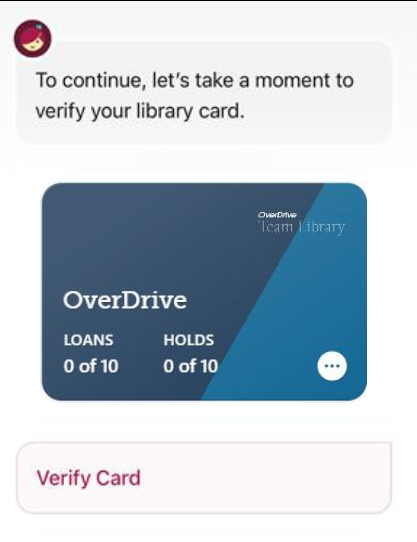
When a PIN or password is enabled for your library, you may be prompted to verify your card the next time you take an action.
From the popup message, tap Verify Card.
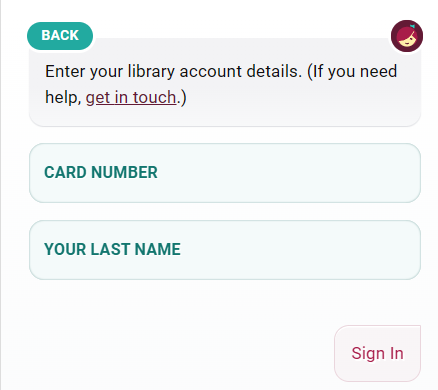
Enter your library card and PIN (Last Name)
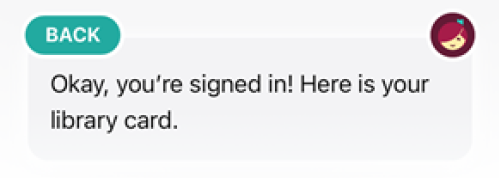
Once you’re signed in, you will get a success message.
Visit the library during open hours. Bring a valid photo ID, and staff can help you find your library card number.